How to reset Canon Pixma IP2770


Canon PIXMA iP2770 are classified into photo printers. This printer is very suitable for use at home. Results in getting the equivalent of lab quality photos. The speed  of this printer quickly spelled out that is about 7 ipm for mono and the 4.8 ipm for color and for 4R-sized photo takes 55 seconds. Resolution of Canon PIXMA iP2770 printer at 4800 x 1200dpi (max). Still uses USB 2.0 connectivity and the type cartridge using PG-810, CL-811 (PG-810XL, CL811XL Optional). For this printer weight of 3.4 kg with dimensions of 445 X 250 X 130mm.

If a lights blink on the POWER and RESUME button alternately and it will show an error 5B00. It means that your ink absorber inside the printer is almost full. In order to solve this you need to clear or reset the counter protection of your printer. To do this, follow this steps.

First make sure that the power cable and usb cable are connected, before you perform the reset procedure. And download the resetter at the bottom of this post.

Using Service Mode
You have to enter in service mode in order to used the resetter. To do that follow this procedure,

1. Turn off the printer without pulling the power cords.
2. Hold down Resume button and press Power button.
3. Keep holding down Power button and let Resume button go.
4. Then Press Resume button 5 times then let BOTH buttons go.
5. You will notice that the Alternate Blinking error is gone, this means that the printer is in Service Mode state.

Using the Resetter
1. Download here.
1. After you download the resetter, extract it and double click "servicetool.exe"
2. Press the "Main" Button, Then press "EEPROM Clear" button if a pop-up appear just click OK
5. Then power off the printer(sometimes you have to press twice the power button to turn off) and turn on again. and its done!
Epson Stylus T10 Resetter

Procedure:
1.Disable your antivirus program/software.
2.Download the file here.
3.Extract the zip file.
4.Run the file AdjProj.exe
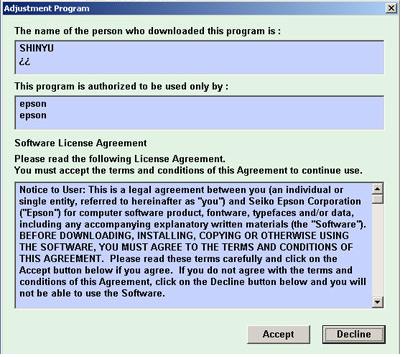
5.Click Accept to continue

6.Select Particular Adjustment Mode

7.Under maintenance select Waste Ink Pad Counter 

8.Click Initialization

Hide Drives on My Computer

Steps on how to how Drives on my computer:

  • Access Group Policy
  • Go to Start > Run > gpedit.msc > Enter
  • Under User Configuration select Administrative Templates
  • Double Click windows components
  • Select windows explorer
  • At the right side select/double click Hide these specified drives in My Computer
  • Select on what drive you want to restrict
  • Click apply then OK

Turn off Autoplay

  • Access the group policy through start > run > gpedit.msc > enter
  • Under User Configuration select Administrative Template.
  • Under Administrative Template select system
  • At the right side click on Turn off auto play.
  • To configure, double click the turn off auto play.
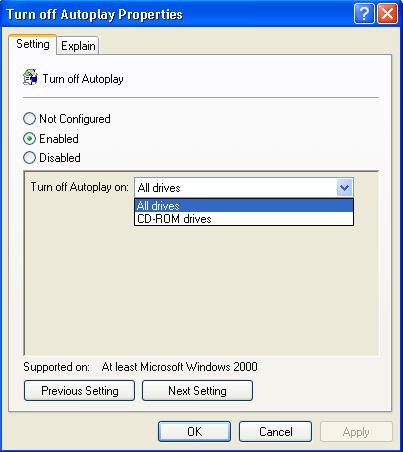
  • When the properties is prompted select enabled

  • Then select All Drives below
  • Click Apply then OK.
  • The auto play of your computer has been disabled this time.

Prohibit Access to Control Panel

Steps on how to disable control panel:
  • Open group policy
  • Go to run (window key + R)
  • Type gpedit.msc then hit Enter.
  • Under user configuration select Administrative Templates. Click the plus sign beside the Administrative Templates.
  • Select control panel
  • At the right side double click prohibit access to the control panel which is not configured at this time.
  • When the properties is prompted select enabled
  • Click apply then OK
  • Close the group policy
  • This time you are now prohibited to access the control panel.


How to Disable Right Click

Steps on how to Disable:

  • Open run (window key +R)
  • Type regedit
  • Navigate to
  • [HKEY_CURRENT_USER\Software\Microsoft\Windows\CurrentVersion\Policies\Explorer]
  • Look for the value name "NoViewContextMenu" (if no such value exists, then just go ahead and create it)
  • Make sure the type is REG_DWORD
  • Type in a 1 to disable right clicking and a 0 to enable right clicking.
  • Restart your computer after the modification.


Restart instead of Shutdown


When you click on the Shut Down option, your computer restarts instead of shutting down. This event will happen because windows XP is designed to automatically reboot when a critical failure occur. Maybe the the Windows detect a crash during system shutdown thats the reason it restarts.

To solve this:

  • Right click on My Computer
  • Select properties
  • Under properties, select advance
  • Click setting at the start-up and recovery
  • Unchecked the automatically restart
  • Click OK then close
OR


1. Click Start > Run and type REGEDIT
2. Double click  HKEY_LOCAL_MACHINE 
then System
then CurrenControlSet
then Control
then click CrashControl
3. Double-click on AutoReboot on the right side 
4. change the value from 1 to 0.

Close regedit and restart the computer.


NOTE: "IF NOTHING HAPPENS, BACK-UP ALL YOUR DATA AND PREPARE FOR REFORMAT"

Installing L.E.D. Wall (hardware)

Steps in Installing LED Sending Card

- Insert the sending card to the video processor or to the pci slot of your computer
- Make sure that you have install the drivers of the v-card
- Connect the DVI cable from the v-card to the sending card and the USB cable (if you not using  the video processor) 
- Connect the DVI cable from the video processor to the sending card ( if you are using a Sending Card)
- If you are using laptop, connect the vga-out from your laptop to the vga-in to the video processor


Steps in Installing LED Wall Hardware
- Assemble the LED cabinet (you can make it 5x5, it depends on you)
- Connect the all the power chords
- Make sure that is it tight
- Connect all the cat 5 cables
- Plug it to the power source
- Plug the other cat 5 wire the video processor.


Maintaining your Computer

Hardware Maintenance:
  1. Clean your computer regularly. Use cotton cloth and other cleaning kits. You can use paintbrush in removing the dusts from the CPU heat sink and the dusts on the motherboard's slots.Make sure that your computer is turned off while cleaning.
  2.  Be careful not to bump your computer.
  3. If you transport your computer, put it on a carrying case.
  4. Keep all liquids away from your computer.
  5. Avoid dirty and dusty environment.
  6. Make sure that you computer is highly ventilated.
  7. Run disc cleanup and defragment tool
  8. Shutdown your computer properly.
Software Maintenance:
  1. Install all updates required
  2. Keep antivirus program updated
  3. Do not install different versions of software.
  4. Uninstall programs that are not needed.
  5. Don't download programs from untrusted internet sites.
  6. Be aware of suspicious files from mails.
  7. Install only license software. 
  8. Shutdown your computer properly.
Back-up files:
       The most important thing you can do as a computer owner is to consistently and reliably back up the data stored on your hard drive. Hardware used to be the most valuable part of a computer but those bits and bytes are now the real investment. 

        Backing up files and removing them from the hard drive frees space for new files on the hard drive. It also protects you from losing important information if the hard drive fails or you accidentally delete files.

       You can use CD's, DVD's, Flash drives, Portable harddisk drive, or even and ordinary hardisk drives in creating file back-ups.


Computer Monitor Troubleshooting

How to Troubleshoot Computer Monitors: 
  • Check to make sure your monitor is on! Some monitors have more than one power button or switch - check to make sure they're all switched on.
  • Check all your power connections. Your monitor might be working fine and your only problem may be a loose or unplugged monitor power cable.Note: A disconnected monitor power cable could be the cause of your problem if your monitor's power light is completely off.
  • Check for the cables. Again, your monitor might be turning on without a problem but no information can get to it because the cable that connects your monitor to your computer is disconnected or loose. Note: A disconnected monitor data cable could be the cause of your problem if your monitor's power light is on but is amber or yellow instead of green.
  • Turn the monitor's brightness and contrast settings completely up. Your monitor might be showing information but you just can't see it because these display settings are too dark. Note: Most monitors today have a single onscreen interface for all settings, including brightness and contrast. If it turns out that your monitor isn't working at all then you'll likely not have access to this interface. An older monitor might have manual knobs for adjusting these settings.
  • Test that your computer is working correctly by connecting a different monitor that you are certain is working properly to your PC. Your monitor may be working fine but your computer might not be sending information to it.
    • If the new monitor you connected does not show anything either, proceed to Step 6.
    • If the new monitor you connected does show information from your computer, proceed to Step 7.
    Important: When testing with the new monitor, make sure you use the data cable that came with it and not the one from your original monitor.
  • Determine why your computer isn't sending information to your monitor. Since neither monitor works, you now know that the computer is not sending information to the monitor. In other words, you've proven that your computer is the reason that nothing shows up on your monitor. Chances are your original monitor is working fine.
  • Test your original monitor with a monitor data cable that you know is working. It's possible that the monitor itself is working properly but it can't receive information from the computer because the cable that connects the monitor to the PC is no longer working. Note: If possible, test using the data cable from the monitor that you successfully tested with in Step 5. If not, purchase a replacement monitor data cable to test with. Note: The data cable on some older monitors are permanently connected to the monitor and are not replaceable. In these cases, you'll have to skip this step and proceed to Step 8.
  • Replace the monitor.

Super User Account

The superuser account, usually called root, comes reconfigured to facilitate system administration. It is said to "facilitate system administration" it means that this account can access all files and datas of the administrator account even if it is password protected.

This is because the superuser, unlike normal user accounts, can operate without limits, and misuse of the superuser account may result in spectacular disasters.
How to access Super User Accounts: 
  • Open command prompt (start > run > cmd > Enter)
  • Type this command "at 21:01 /interactive "cmd.exe" then enter." 21:01 is the sample time in which you are now to access the super user account, this time must be set 2-5 minutes advance from the tome of your computer"


  • When the system clock reach the time it opens a new command prompt.that looks like bellow.
  • Run Task Manager by either pressing CTRL+ALT+DELETE or typing taskmgr at the command prompt. In task manager, go to the processes tab, and kill explorer.exe; your desktop and all open folders should disappear, but the system command prompt should still be there.
  •  At the system command prompt, enter in the following: "explorer.exe"
  • A new desktop will display and that is the SYSTEM. 

Password on Admin Account


  • You accidentally forgot your password.
  • Somebody change your password.
  • You are attack by a virus.
How to fix this:
  1. Insert your original windows xp cd and restrat your computer.
  2. Make you that the cd-rom will be your first boot device.
  3. When press any key prompted, then just hit any key.
  4. When blue screen will display, you are on your way.
  5.  Press F8 to agree the license agreement
  6. After that, some options will display, then hit enter
  7. Your computer will automatically search for the installed Operating System, If your computer finds it hit hit R to repair.
  8. Just wait until your computer restarts.
  9. When the picture bellow will show , Press Shift +F10
  10. When command prompt will display on your screen, type nusrmgr.cpl then Enter. It will allow you to access the User Accounts in the control panel.
  11. Now you can add another administrator account on your computer.
  12. After making New Administrator account, close it and wait until your computer will be done repairing.
  13. After repairing you can use your new admin account to remove the password to the other accounts.

Computer Restarts

Computer will restarts due to this following problems:
  • Faulty powers supply
  • Defective RAM (Random Access Memory)
  • Faulty harddisk drive
  • Overheating on CPU
  • Overheating on harddisk drive.
  • Hardware problems
  • Sometimes due to crashes of Operating System
  • Virus
Power Supply:
      Loss contact on the sockets from power source can cause restarting. Check all your connections and try it on for another time.If it restarts again then replace you power supply.

Defective RAM:
      Rusty and dusty RAM can cause loss contact from its socket. Remove your memory stick and clean it. Read on this.

Faulty Harddisk:
      Faulty hard disk is one of the most common reasons for abrupt computer restart. Run a hard disk scan to fix this issue. If there are bad-sectors, then replace it.

Overheating on CPU:
      CPU overheats when your cpu fan won't function, maybe your fan won't turn because some wires block it. Most motherboards have CPU temperature setting a their BIOS setup.

Overheating on Harddisk:
      Harddisk overheats when there's no proper ventilation on it's area. When harddisk overheats it won't work as nornal.

Hardware Problems:
      Defective motherboard can also cause restarting. Chances of motherboard to be repair is very low, so you must contact a computer technician to check it and buy a new one.

Crashes of Operating Systems:
       Sometimes a software can also be the culprit behind the computer restart. If you have recently installed new programs and other application you must uninstall it in order to fix your problem. Corrupted boot sector can cause restarting. To fix this click here.

 Virus:
       Some computer viruses are written to reboot your computer without warning. Usually these viruses will make the computer reboot ever 5, 10, 15 or 30 minutes after the computer has booted.

Suggestions

POST BELOW:


Def. USB Flash Drive

USB Flash Drive
        - a storage device that is smaller to floppy disk. It has a flash memory with Universal Serial Bus interface.This drive is removable and rewritable.A flash disk might become defective if it has bad sectors, in which case a repair is required. Microsoft Windows provides a disk repair utility called "Chkdsk" which checks for errors and will repair any errors it finds.

SYMPTOMS OF DEF. FLASH DRIVE

1. Cannot be detected by your computer.
2. Cannot be formatted.
3. Files inside the cannot be erased.
4. You can't transfer files/data to it.
5. Sometimes it is write protected.
6. The properties will be "0 bytes used space" and "0 bytes free space"
7. Computer cannot recognize the USB flash drive

HOW TO RETRIEVE DATA

   If your flash drive has been formatted unintentionally and you want to retrieve the data you can use some retrieving tools found on internet. There are a lot of retrieving tools so don't have to worry about it..I tried many times retrieving datas from formatted drives. For me I'm using "File Scavenger."


1. Click "Start" button, then click on "Computer." A new window will open in which you can establish the drive letter of the defective flash drive. Drive letter "C" is usually the system which Windows is installed. Letter "D" is maybe the CD/DVD drive. For the purpose of this article, lets's assume that letter "E" is the flash drive.

2. Click on  Windows "Start" button and click run. You ca also do this by pressing "windows + R" on your keyboard, the type cmd and hit enter.

3. Type "chkdsk e: /f /r" and press the "Enter" key on your keyboard (in this case, the "e" is the flash drive mentioned in Step 1). This will execute the Chkdsk command line application. Wait for the process to complete. It might take several minutes, depending on the size of your flash drive and the speed at which your computer operates.

4.Restart your computer.


NOTE:
If drive letter "e" is not the correct letter for the flash drive, change the letter in the command, in Step 3, to the correct drive letter.


Def. Harddisk, Cd-Dvd ROM

SYMPTOMS OF DEF. HARDDISK DRIVE:

- The harddisk makes ticking sounds
- The harddisk makes a shrieking or rattling noise
- The harddisk smells burnt
- The harddisk is not recognised any more by the bios
- Your computer won't boot anymore.
- The computer hangs.
- Your harddisk still appears in the bios but cannot be installed by any Operating Systems

If these symptoms occur, your harddisk maybe damage.

WHAT TO DO:

If you can manage your computer to turn it ON for a little while, You must back-up all your important files and save it to your flash drive or any other storage devices. If your computer won't boot-up but your harddisk has been detected on your BIOS then try to make your harddisk slave to the other computer in order to back-up your files.

SYMPTOMS OF DEF. CD-DVD ROM:

- Cannot be detected on BIOS.
- Cannot read your CD's or DVD's
- Wont open or tray will not eject
- Very loud noise
- Works for a while

WHAT TO DO:

If you can manage to disassemble and clean it, then do it.
But if there"s nothing happens just dispose it and buy a new one.


Virus..Trojan..Worm

What is a computer virus?

A computer virus is a small software program that spreads from one computer to another computer and that interferes with computer operation. A computer virus may corrupt or delete data on a computer, use an e-mail program to spread the virus to other computers, or even delete everything on the hard disk.  

Symptoms of a computer virus

If you suspect or confirm that your computer is infected with a computer virus, obtain the current antivirus software. The following are some primary indicators that a computer may be infected:
  • The computer runs slower than usual.
  • The computer stops responding, or it locks up frequently.
  • The computer crashes, and then it restarts every few minutes.
  • The computer restarts on its own. Additionally, the computer does not run as usual.
  • Applications on the computer do not work correctly.
  • Disks or disk drives are inaccessible.
  • You cannot print items correctly.
  • You see unusual error messages.
  • You see distorted menus and dialog boxes.
  • There is a double extension on an attachment that you recently opened, such as a .jpg, .vbs, .gif, or .exe. extension.
  • An antivirus program is disabled for no reason. Additionally, the antivirus program cannot be restarted.
  • An antivirus program cannot be installed on the computer, or the antivirus program will not run.
  • New icons appear on the desktop that you did not put there, or the icons are not associated with any recently installed programs.
  • Strange sounds or music plays from the speakers unexpectedly.
  • A program disappears from the computer even though you did not intentionally remove the program.

Symptoms of worms and trojan horse viruses in e-mail messages

When a computer virus infects e-mail messages or infects other files on a computer, you may notice the following symptoms:
  • The infected file may make copies of itself. This behavior may use up all the free space on the hard disk.
  • A copy of the infected file may be sent to all the addresses in an e-mail address list.
  • The computer virus may reformat the hard disk. This behavior will delete files and programs.
  • The computer virus may install hidden programs, such as pirated software. This pirated software may then be distributed and sold from the computer.
  • The computer virus may reduce security. This could enable intruders to remotely access the computer or the network.
  • You receive an e-mail message that has a strange attachment. When you open the attachment, dialog boxes appear, or a sudden degradation in system performance occurs.
  • Someone tells you that they have recently received e-mail messages from you that contained attached files that you did not send. The files that are attached to the e-mail messages have extensions such as .exe, .bat, .scr, and .vbs extensions.

Def. Boot Sector

WHAT IS A BOOT SECTOR?

      Your computer hard disk drive (HDD) is divided into small sectors. The first of these is the boot sector. It is very important because that sector will be accessed first when your computer boots up.

SYMPTOMS OF CORRUPTED BOOT SECTOR

      Your computer may restart again and again, only your Operating System logo will appear then it will restart. Sometimes it have a black screen.

       
HOW TO FIX THIS?
for win XP:

     1. Go to BIOS setup and set your DVD-ROM as first boot device.
     2. Insert your windows xp installer to your dvd-rom or cd rom drive.
     3. Restart your computer, when press any to boot from cd prompted , hit any key.
     4. When a blue screen will display, then you are on you way.
     5. You must press F8 to agree the setup agreement.
     6. After that some options will display to your screen, read it.
     7. You must enter the recovery console, so you must press R on your keyboard.
     8.  If the console is started, enter the number that corresponds the installation you want to
          repair.
     9. Type the administrator password. If you don't have admin password then just hit Enter.
    10. At the Console command prompt type fixboot and hit Enter.
    11. You will asked to confirm and confirm it by pressing Y.
    12. If you want to rebuild it you can type bootcfg /rebuild.
    13. Confirm it all. then type exit.

For win Vista and Seven:

       The screen bellow will display when your insert your windows vista or seven installer. You just select it on how you repair.


Def. Memory & V-card

SYMPTOMS OF DEF MEMORY

1. System Unit won't boot.
2. Continuous  beeping.
3. Bad graphics/display on screen.
4. Crashes when heavy application is used.
5. Blue screen during installation of Operating System.
6. System Unit will automatically restart.
7. Programs will hang


WHAT TO DO?

      Try to remove the memory stick and clean its connections using a pencil eraser. Clean also the dusts of the memory slots using a vacuum or simply a paint blush will do.If your motherboard have 2 or more memory slots, try to use only 1 memory stick and insert it to the slots one by one. If nothing happens try to use/borrow another memory stick before you buy a new one.


SYMPTOMS OF DEF VIDEO CARD

1. No display on screen.
2. Three short beeps during start-up.
3. Bad graphics display.

WHAT TO DO?

      If your v-card is not on-board, check it if it is not loose (maybe its just a loss contact). Remove your video card and clean its connections using a pencil eraser and re-insert it to its slot. If nothing happens try to insert the video card into another computer, if that computer will display then your slot for the video card is defective and your best option for that is to buy another motherboard. Doing in reverse, try also to insert another video card to your defective unit (make sure that the video card you use is functional) By doing this, you can identify whether your motherboard is defective or your video card.
      If it is on-board, then your best move is to buy an external v-card that will will to your motherboard (maybe its an AGP or a PCI-E).

Basic Computer

System Unit
A computer system unit contains many parts. 
Motherboard - The motherboard is the main circuit board of a microcomputer.  It is also known as the main board or system board.
CPU - The CPU is the central electronic chip that determines the processing power of the computer.
Memory - Memory is the part of the computer that temporarily stores applications, documents, and stem operating information.
Bus - A bus is an electronic line that allows 1s and 0s to move from one place to another.
Expansion Slots - Expansions slots appear on the motherboard.  They are sockets into which adapters are connected.
Ports and Connectors - A port is a connector located on the motherboard or on a separate adapter.
Bays - A bay is a space inside the computer case where a hard drive, floppy drive or CD-ROM drive sits
Power Supply - A power supply changes normal household electricity into electricity that a computer can use.
Sound Components - A sound card lets a computer play and record high quality sound.

Central Processing Unit (CPU)
Does all of the work for the computer
    1. Does all of the mathematics, mainly addition
    2. Does all the logical comparisons of values
    3. Directs the flow of data in a computer
    4. Controls the operation of the parts of the computer
Today, all CPUs are microprocessors
    1. A microprocessor is a complete computer on a silicon chip  
    2. A microprocessor does all of the functions of a computer
      • stores data and instructions waiting to be used
      • follows changeable instructions
      • does input, processing, and output

NTLDR Missing

NTLDR is Missing.
Related errors:
Below are the full error messages that may be seen when the computer is booting.
NTLDR is Missing
Press any key to restart
Boot: Couldn't find NTLDR
Please insert another disk
NTLDR is missing
Press Ctrl Alt Del to Restart

  1. Computer is booting from a non-bootable source.
  2. Computer hard disk drive is not properly setup in BIOS.
  3. Corrupt NTLDR and/or NTDETECT.COM file.
  4. Misconfiguration with the boot.ini file.
  5. Attempting to upgrade from a Windows 95, 98, or ME computer that is using FAT32.
  6. New hard disk drive being added.
  7. Corrupt boot sector / master boot record.
  8. Seriously corrupted version of Windows 2000 or Windows XP.
  9. Loose or Faulty IDE/EIDE hard disk drive cable.
Windows 2000 users
If your computer is using Microsoft Windows 2000 and you are encountering the NTLDR error. Create the below boot.ini file on the floppy diskette drive.
[boot loader]
timeout=30
default=multi(0)disk(0)rdisk(0)partition(1)\WINNT
[operating systems]
multi(0)disk(0)rdisk(0)partition(1)\WINNT="Microsoft Windows 2000 Professional" /fastdetect
Copy the NTLDR and NTDETECT.COM files from another computer using the same operating system. Both of these files are located in the root directory of the primary hard disk drive. For example, C:\NTLDR and C:\NTDETECT.COM should be the locations of these files on many computers.
·        Please keep in mind that these files are hidden system files, if you need additional help with viewing hidden files in Windows please see document CH000516
Once these files have been copied to a floppy diskette reboot the computer and copy the NTLDR and NTDETECT.COM files to the root directory of the primary hard disk drive. Below is an example of what commonly should be performed from the A:\> drive.
copy ntldr c:
copy ntdetect.com c:
After the above two files have been copied, remove the floppy diskette and reboot the computer. 
Windows XP users
  1. Insert the Windows XP bootable CD into the computer.
  2. When prompted to press any key to boot from the CD, press any key.
  3. Once in the Windows XP setup menu press the "R" key to repair Windows.
  4. Log into your Windows installation by pressing the "1" key and pressing enter.
  5. You will then be prompted for your administrator password, enter that password.
  6. Copy the below two files to the root directory of the primary hard disk. In the below example we are copying these files from the CD-ROM drive letter, which in this case is "e." This letter may be different on your computer.

    copy e:\i386\ntldr c:\
    copy e:\i386\ntdetect.com c:\
  7. Once both of these files have been successfully copied, remove the CD from the computer and reboot.